
Information
If you are a new user, or the IT Team has enabled multi-factor authentication (MFA) on your gen3marketing.com account, you will be asked to register two methods for MFA.
By registering for multi-factor authentication, you will also gain the ability to reset your own password. More information on this can be found here (coming soon).
Instructions
- After signing-in to Microsoft 365, you will arrive at the following screen asking for More Information. Click Next.
- After clicking Next, you will arrive at the following screen, here you will be asked to setup the Microsoft Authenticator app. Whilst there are options to choose a different method or use a different authenticator app, we would strongly encourage the use of the Microsoft Authenticator app.
We recommend the use of the Microsoft Authenticator app as it greatly simplifies this entire process, we also recommend the app as it gives you the ability to use passwordless authentication. This allows you to login to your applications by inputting the numbers displayed on-screen into the Authenticator app. This also removes the extra step in needing to authenticate after you have logged in with your password. Please contact the IT department if you would like to utilise this option.
To download the Microsoft Authenticator app, please visit the following link: https://aka.ms/authapp on your cell phone or scan the QR code below. Once you have downloaded the app, click Next on your computer. - After clicking Next, open the Microsoft Authenticator app on your phone and follow the app setup to allow notifications. After you have done this, tap the + in the app and tap Work or School account.
Microsoft Authenticator app (iOS):
Then back on your computer, click Next. - After clicking Next, you will be presented with a screen displaying a QR Code. Back on your phone, tap Scan QR code, then scan the QR code shown on your computer. After you have scanned the QR code, click Next.
(Please note, this QR code is unique and time sensitive. If a significant delay occurs between the code being generated and you scanning it, we recommend you click Back then Next to generate a new code.)
-
After clicking Next, you will be sent a notification to your mobile device. As part of this notification, you will be asked to enter the number shown on the screen. Enter this number on your mobile device, then tap Yes.
Microsoft Authenticator app (iOS):
Once you have entered the number and tapped Yes, you will see a screen telling you that the notification was approved, click Next. - After clicking Next, you will then be asked to setup Phone authentication. If you would like to use an alternative such as email, select “I want to set up a different method” then follow the instructions. Otherwise select the country where you are based then type in your phone number and click Next.
-
After clicking Next, you will receive an SMS message with a verification code. Type the code in the box below and click Next.
- On the next screen, you should see that your phone has been registered successfully. Click Next.
- After clicking Next, on the next screen you will see that you have successfully completed setting up your security information.
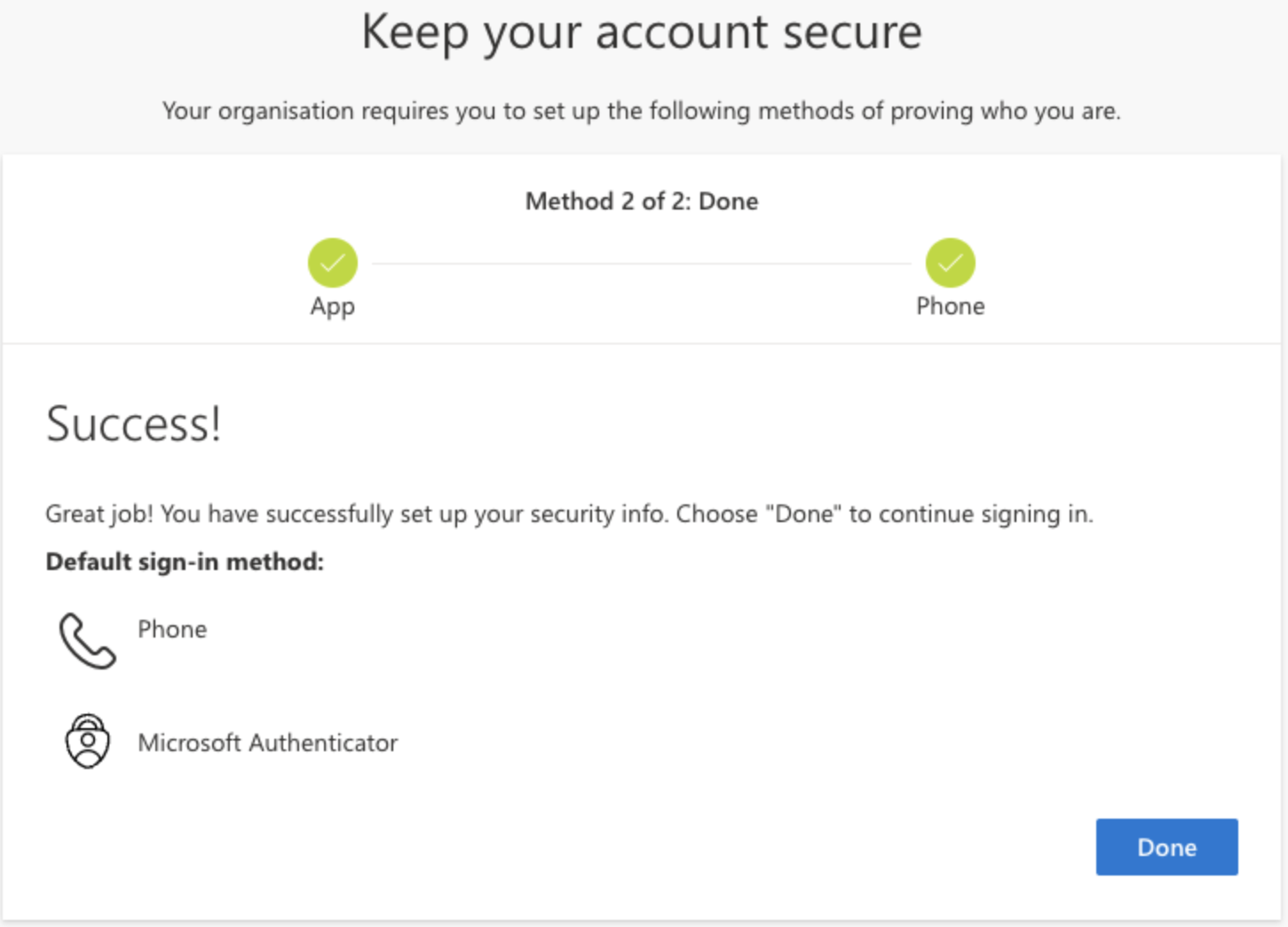
If this is your first time signing in to Microsoft 365, click Done then you will be asked to set a new password. Otherwise once you click Done, you will be able to continue using Microsoft 365.
Comments
0 comments
Please sign in to leave a comment.